Use a MacBook with the lid closed and no monitor
Your iPhone or iPad becomes the screen
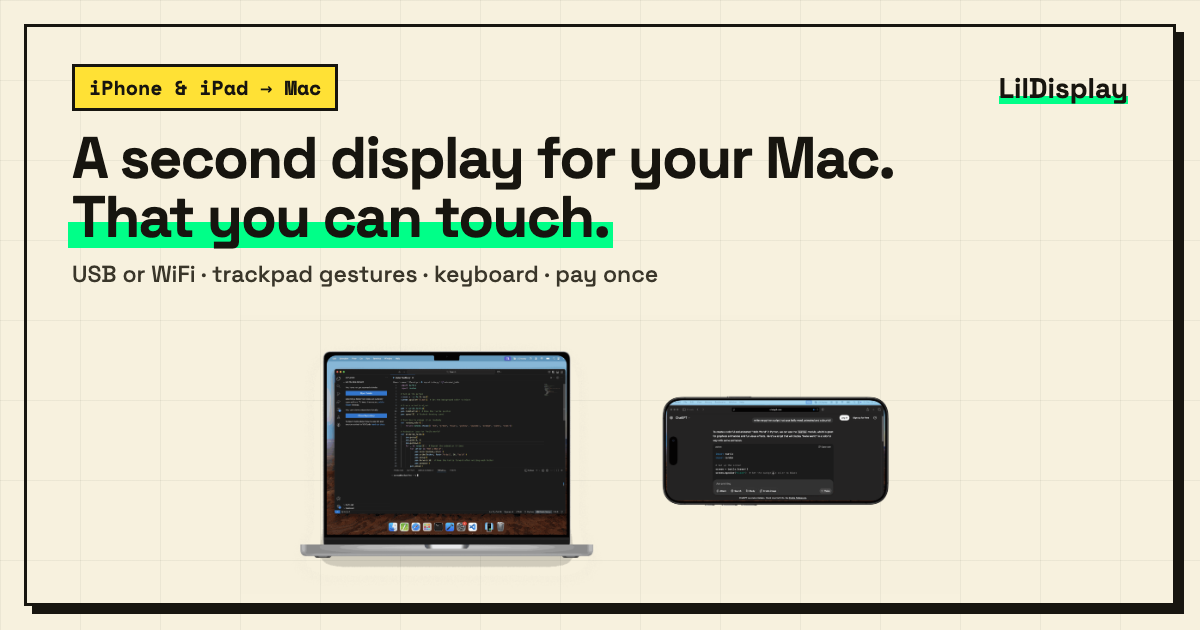
macOS only keeps a MacBook awake with the lid closed (clamshell mode) when an external monitor, power and a keyboard or mouse are connected. Close the lid without them and the Mac goes to sleep.
LilDisplay has an option for exactly this. With it on, the MacBook stays awake when you close the lid, and your iPhone or iPad keeps working as its display, trackpad and keyboard.
How to turn it on
- Install LilDisplay on your iPhone or iPad and the free LilDisplay Mac app, and connect them (USB or WiFi).
- Click the LilDisplay icon in the Mac menu bar and choose Advanced → Keep Awake When Lid Is Closed.
- Read the note and confirm. macOS asks for your administrator password, because this changes a system power setting.
- Close the lid and keep working from your iPhone or iPad.
Before you rely on it
- Heat: the Mac is fully awake. Give it airflow for long sessions, and don't leave it running in a closed bag.
- Battery: it drains as if you were using the Mac. Plug it in for long sessions.
- Turn it off when you're done from the same menu item. The setting is a system setting, so it stays on until you turn it off or restart your Mac.
Why an iPhone instead of a monitor?
It's already in your pocket. A Mac on a shelf, in a cupboard or in a backpack stays reachable for a quick check, a download or a long job, with a real screen, touch and a keyboard, without carrying a monitor around.
iPhone or iPad with iOS 15.6+ · 3 free sessions, then $2.99 once · free Mac app for macOS 14+