How to get a touchscreen on your Mac
With the iPhone or iPad you already own
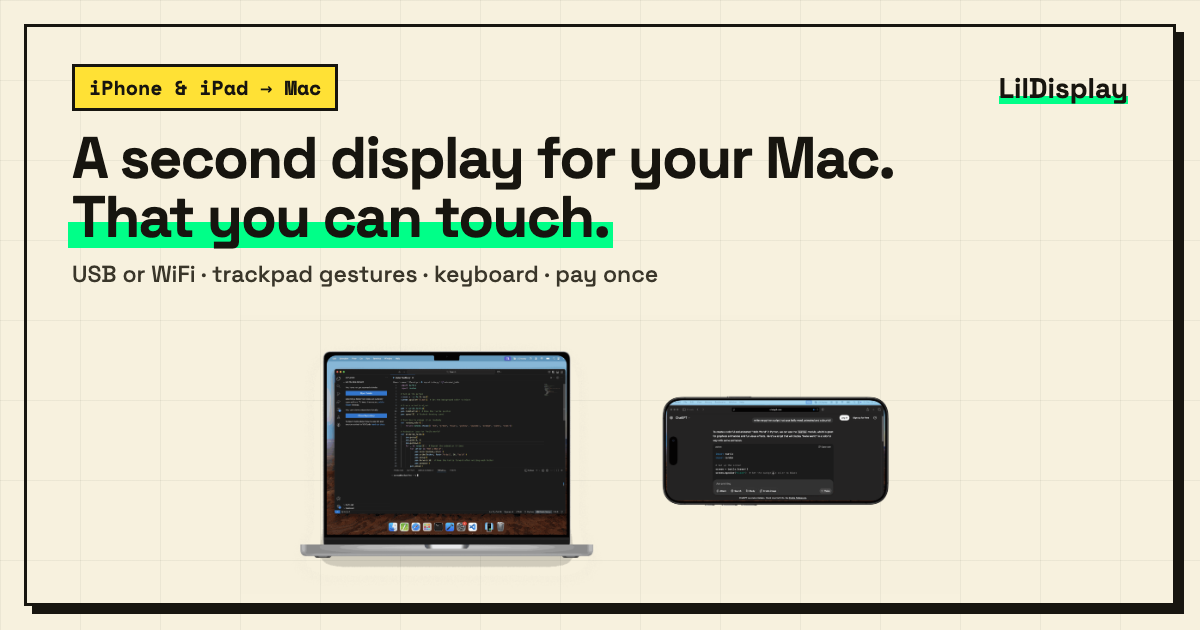
No Mac has a touchscreen, and macOS has no built-in touch support for external monitors either. Sidecar turns an iPad into a display, but it is built around Apple Pencil: you can scroll with two fingers, but you can't tap to click.
LilDisplay takes a different route. It turns your iPhone or iPad into an extra display for your Mac, and everything you do on that screen is sent back to the Mac as real input.
What you can do with your fingers
- Direct mode: touch a button, link or window on the screen and it is clicked, right there.
- Trackpad mode: use the whole screen like a MacBook trackpad: tap or double-tap to click, double-tap and drag to select, two fingers to scroll with momentum, two-finger tap to right-click.
- Pinch with two fingers to zoom (⌘+ / ⌘−).
- Swipe with three or four fingers to switch Spaces, open Mission Control or App Exposé, tap with three fingers to look up a word.
- Type on the Mac with your iPhone or iPad keyboard, including ⌘, ⌥, ⌃, Esc, Tab and the arrow keys.
- Apple Pencil works as a precise pointer, with hover on iPads that support it.
How to set it up
- Install LilDisplay on your iPhone or iPad from the App Store.
- Install the free LilDisplay Mac app from our website, open it, and allow Screen Recording and Accessibility (Accessibility is what lets touches control the Mac).
- Connect with a USB cable, or over WiFi with the two-digit code shown in the Mac's menu bar. WiFi works peer-to-peer, so the devices don't need to share a network.
Good to know
Your iPhone or iPad becomes a second display, so the touchscreen is the small screen, not your main monitor. That is ideal for a palette, a chat window, music controls or a document you keep reaching for. If you want to control your main screen instead, Trackpad mode lets the iPhone act as a trackpad for the whole Mac.
iPhone or iPad with iOS 15.6+ · 3 free sessions, then $2.99 once · free Mac app for macOS 14+